Invalid User Folder Characters
The iFly MAX8 product requires access to a number of simulator folders. When a folder path contains a non-standard ASCII character (such as a non-English character), it can break access for many applications that access the path. Even the MSFS EXE.XML file will not allow auto-start of the iFly Plugin or other applications at startup.
To resolve this and to allow the product to work, you have to take the following steps:
1. Identify the folder that contains the non-A-Z, a-z, 0-9 (and some symbol) character. It could be your user folder (under C:\Users\YOUR_USER_NAME) or it could be part of your Community folder path.
2. You need to retrieve the short "8.3" folder path for the folder with the invalid character. To do that, you can download and unzip the tool below, and browse to the folder that contains the non-standard character. In the example below, you can see how we obtained the short 8.3 path in the lower box.
Click here to download GetShortPath
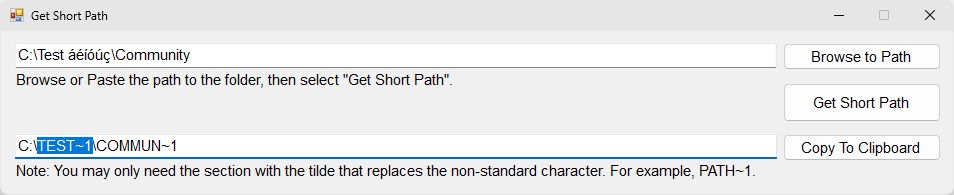
Important: Copy the short path section. In this example, TEST~1.
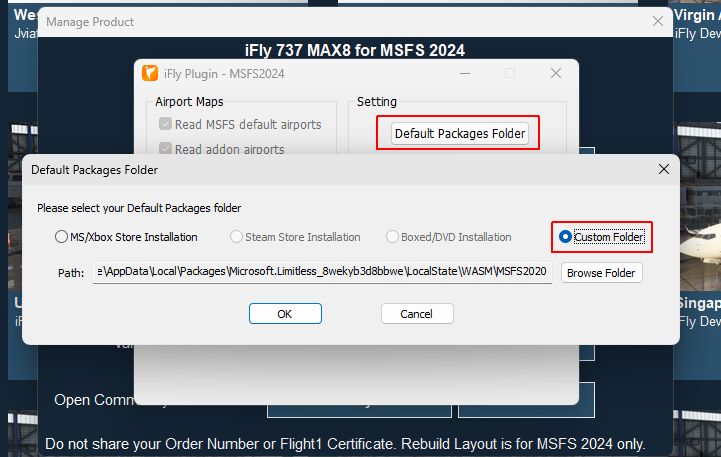
3. Open the iFly Plugin (you can do so via the Manage Product button in the iFly Manager), then select Default Packages Folder, and set it to Custom Folder. You should not need to browse to the folder. Select OK to close.
4. Open your Community Folder (you can do it via the iFly Manager), then browse to \ifly-aircraft-737max8\Data\Tool\EFB and open the Config.ini file in a text editor. You will need to edit the PackagePath= value to only replace the section with the non-standard character.:
PackagePath=C:\Users\TEST~1\AppData\Local\Packages\Microsoft.Limitless_8wekyb3d8bbwe\LocalState\WASM\MSFS2020
5. If the iFly Plugin does not auto-start with MSFS, go to the iFly Manager and in Settings, use the button to edit the EXE.XML file, and replace any section with the invalid character (if it exists). Save the updated EXE.XML file
You can now start MSFS. It should work as normal. If not, double-check the above steps.